
Contents
How does the GA4 pipeline get setup?
Once you’ve created your pipeline, the data doesn't appear immediately.
There are two steps:
- You need to run all the pipeline set-up steps.
- (Optional) You can add any additional configuration you'd like.
What are set-up runs?
In order to provide feedback as you're setting up your pipeline (and avoid hitting errors further down the line), the GA4 set-up doesn't run in one big chunk.
The really basic version is:
- Keep hitting "Start Set-up Run" until you get to the GA4 status: "Complete"
The slightly more complex version is:
- Each time you click "Start Set-up Run," the next stage of the pipeline will execute.
- Once the process reaches "Complete," your pipeline is fully configured and ready to use.
- Additional set-up steps will become available as your pipeline progresses through the set-up stages.
- If you make changes, such as adding a new conversion, the interface will prompt you to re-run specific parts of the set-up to reflect the updated data.
Step 1: Back to our basic set-up
Once you have added GA4 to your pipeline, you need to do the setup run.
Hit Save (if you didn't do it yet) and then “Start Setup Run”
This first set-up run copies the data to the correct region.
You can check in on progress in the top right hand side of the screen.
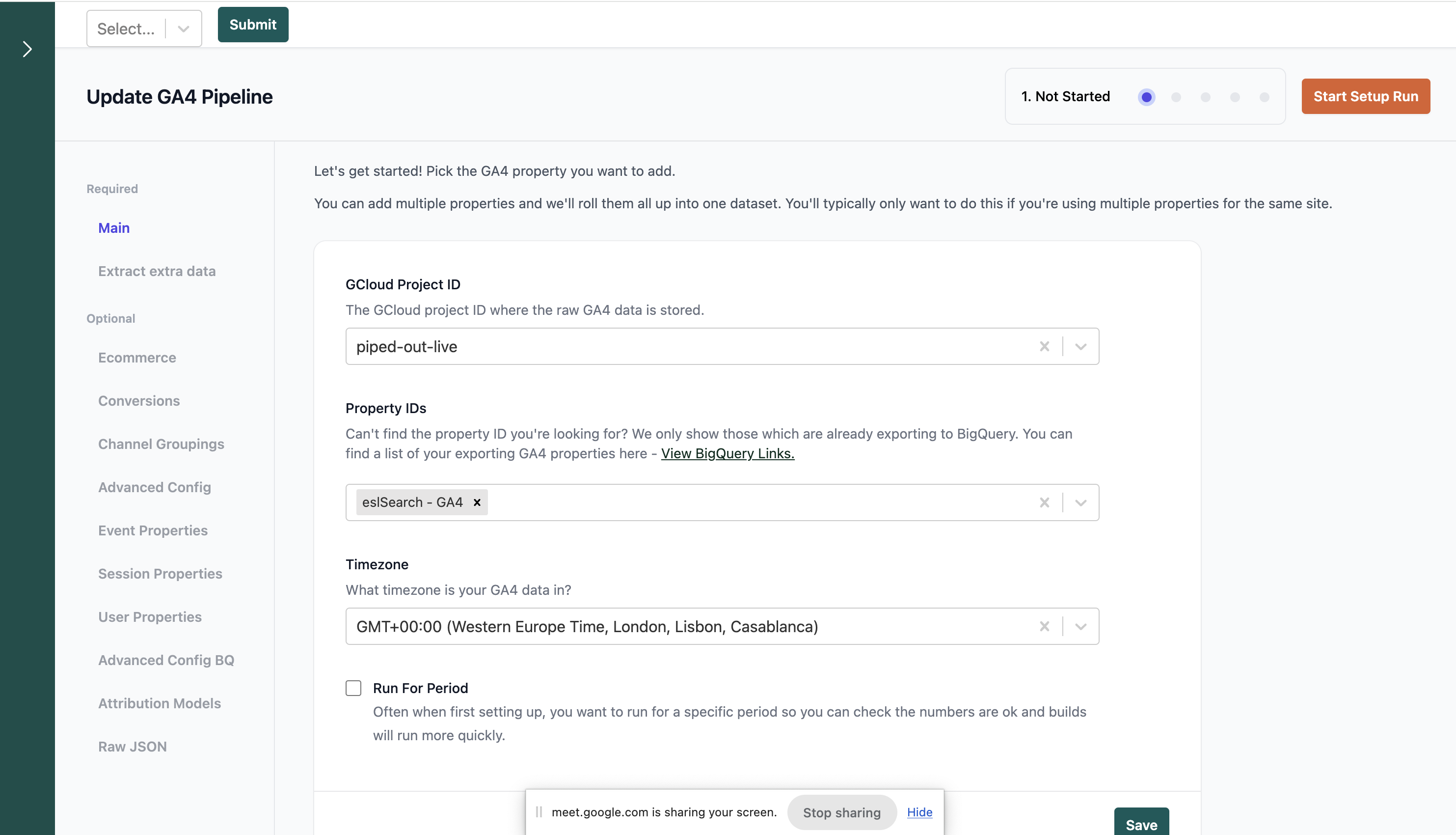
Step 2 - Now we've unlocked all the optional setup!
When the first start-up run is completed then you'll be able to do additional configuration.
You can see all that in the GA4 Optional Setup over on the left hand side.
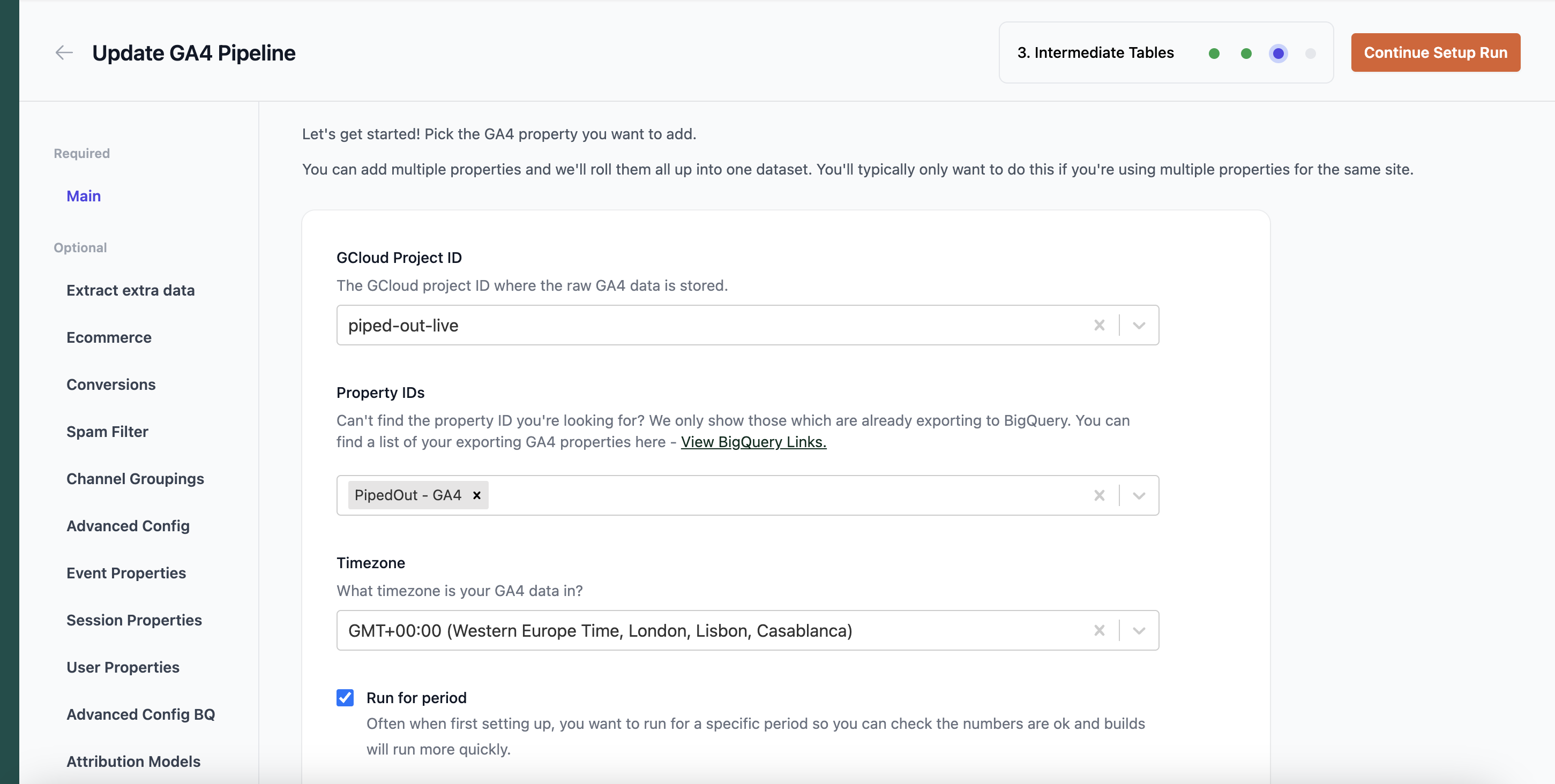
Step 3a - Continue configuring your pipeline
If you want to continue configuring your GA4 pipeline, then you can look through the optional setup options on the left.
And continue reading the optional setup docs which begins with Extracting extra data for GA4 page.
Step 3b - Get started with your data
If you don't care about that and just want to get started then hit hit Save and then “Start Setup Run”.
You can always come back and change options later!
Then head to accessing your data to get started.