
Contents
GA4 BigQuery Data Checks
GA4 BigQuery is the best way to work with your GA4 data.
But it doesn’t guarantee that the data going in is good. So we’ve built data checks to let you monitor what’s going in so you can trust your data.
We’ve already got checks for:
- Data freshness
- Data delays
- PII
- And duplicate event tracking.
And we’re adding more. And better yet. It’s free.
Let’s dive in.
Introducing Piped Out’s GA4 Data Checks
To get started, you need two things:
- To be exporting GA4 data to BigQuery.
- If you're not doing that, follow these steps and come back.
- To create a free Piped Out account.
So what are the checks?
Checks that run every day
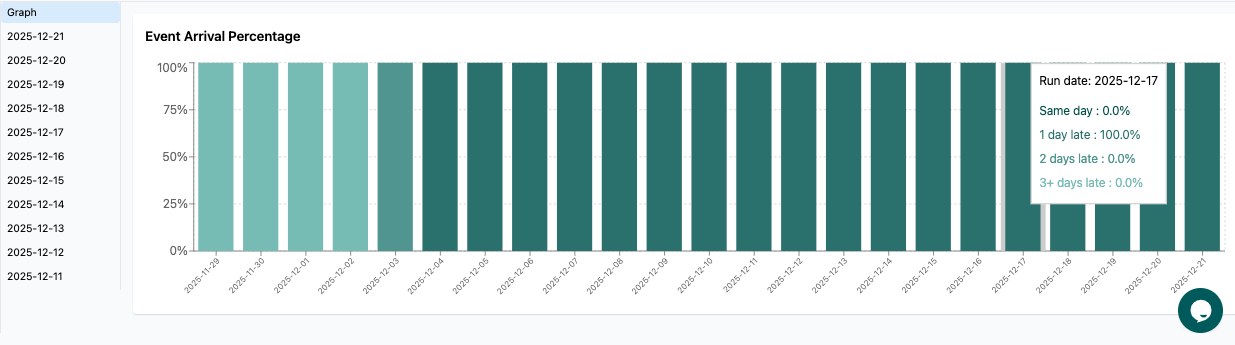
Event collection delays
How many days does it take for BigQuery to backfill a day?
Google documentation says “Data processing can take 24-48 hours. During that time, data in your reports may change.”
We want to know specifically - that’s what the check does.
We count how many events arrive each day to tell us how late data is arriving.
This bucketed into:
- Same day
- 1 day late
- 2 days late
- 3+ days late
BigQuery vs GA4 API Numbers
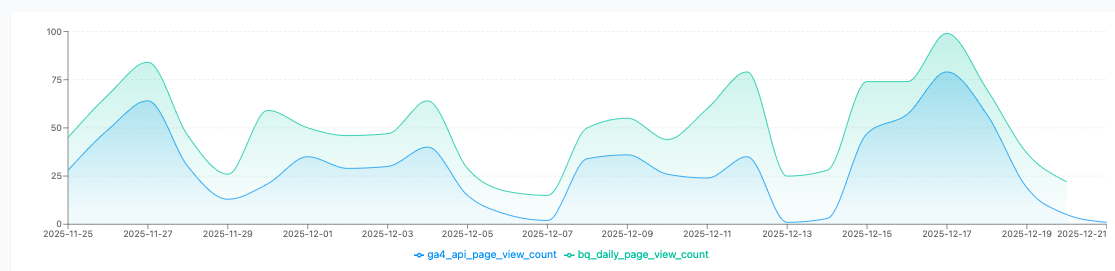
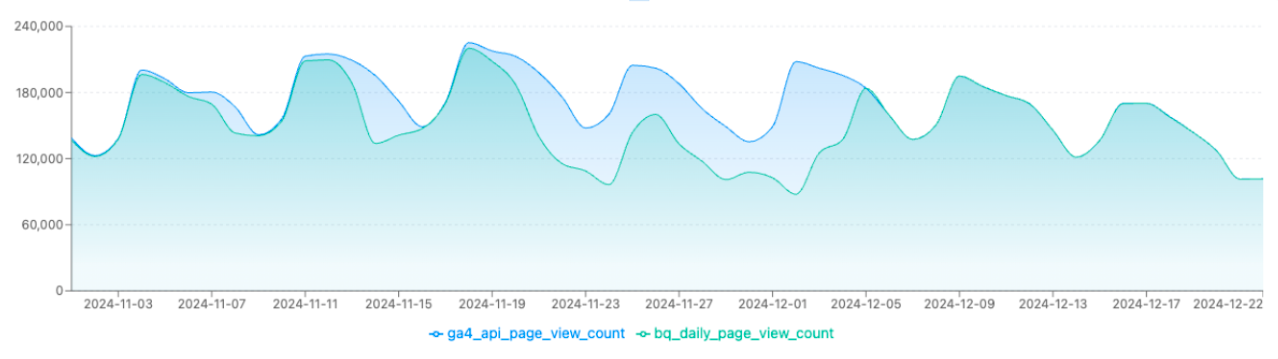
Does BigQuery match the UI?
This check compares the API counts to the BigQuery export counts which is broken down into:
- Sessions
- Users
- Page-views
- Event counts
What to look for if you’re a small site?
The GA4 BigQuery & API numbers should be the same, or very close to being the same. You’re likely not hitting too many API sampling limits.
What if you’re a big site?
The focus here should be on event count.
You want to know that you’ve not got any gaps in your BigQuery data.
If not that means:
- BigQuery numbers dipping below the API numbers - this indicates that your full GA4 BigQuery data is not being exported for some reason.
- BigQuery numbers out of sync with the API numbers - this, again, indicates that there’s a problem with the export.
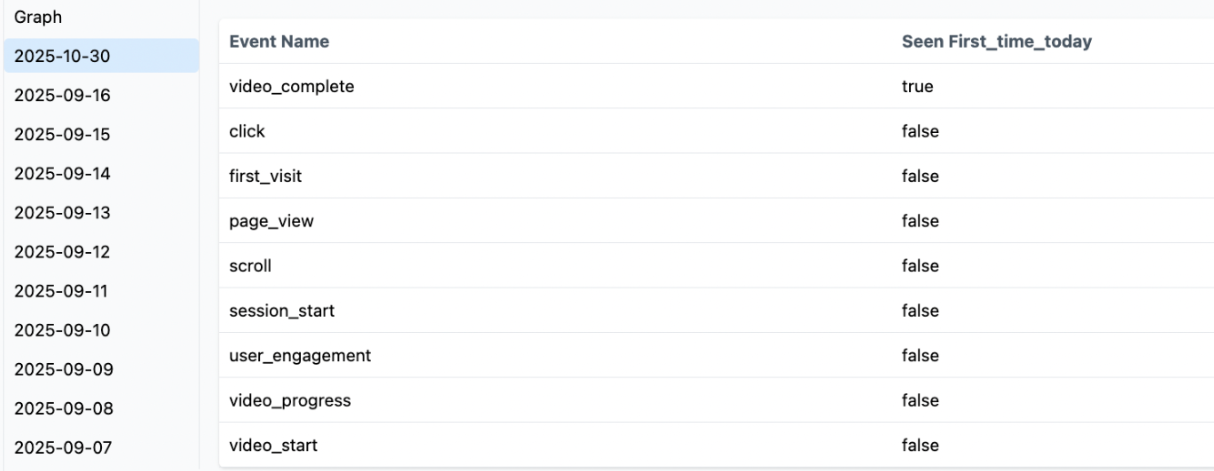
Event Name Monitor
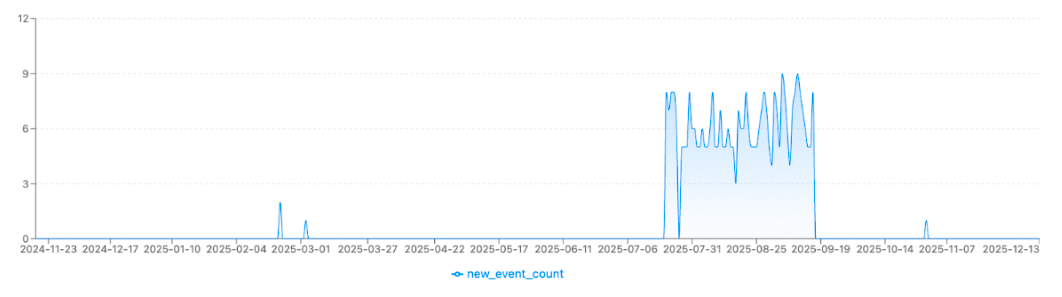
Are there new events popping up?
This check monitors events and records when we see a new event_name.
You might be expecting this (i.e. you’ve created a new conversion or specific event to track). But it could also be a mistake or a misnamed event. In other cases, though, it may be due to an inadvertent change to GTM etc, which may be messing with your conversions.
What do I look out for?
You’ll look for any spikes with new events being triggered.
This will highlight new events which haven’t been seen before, and you can then dive into the specific dates.
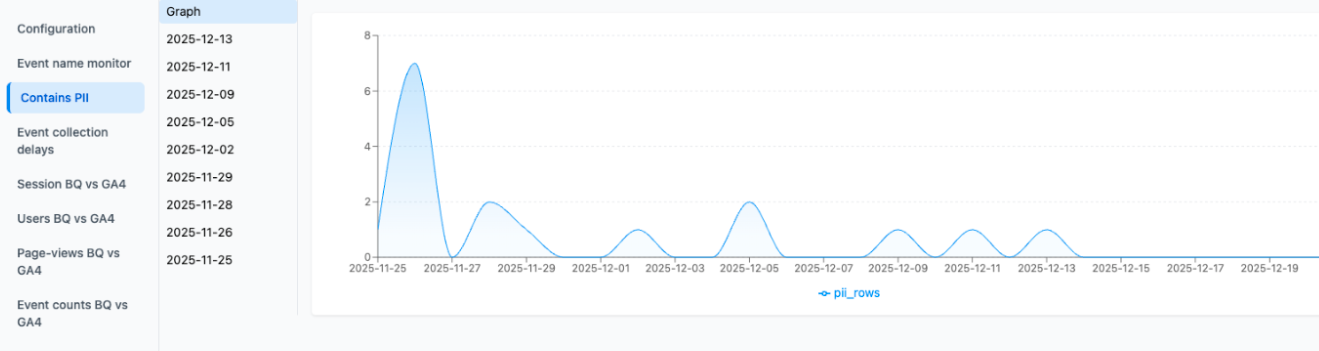
Personal Identifiable Information (PII) Check
Is there any PII being collected in your GA4 data per day?
This checks searches for PII in event params and URL i.e. Social Security Numbers, emails etc.
You will need to configure these yourself. Remember, if you’re not American, you’ll need to switch off things like Social Security Number.
What to look for?
This will flag any cases where there is possible PII.
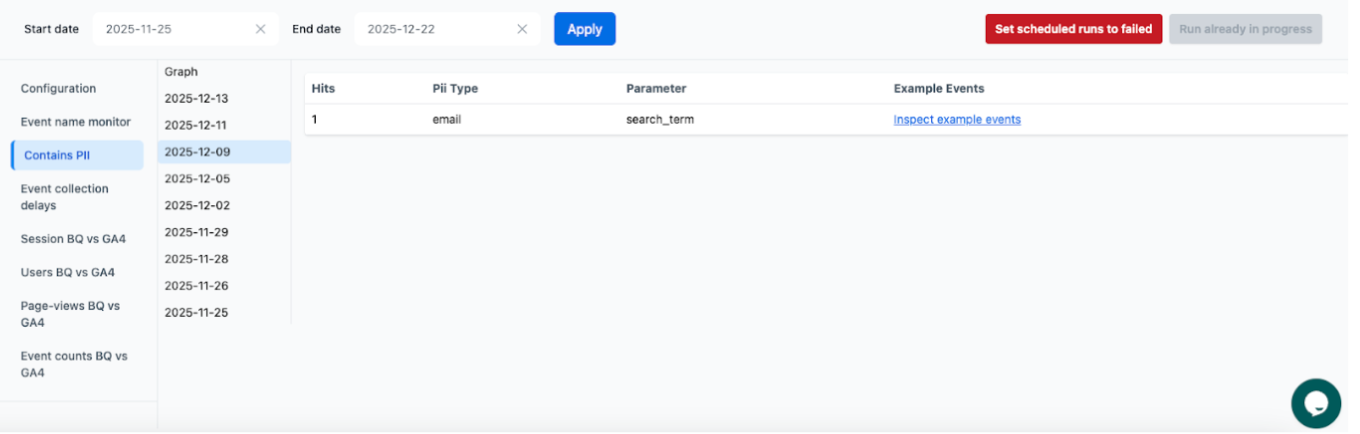
You can then focus on specific days, and then either export the data or have the SQL query to run on BigQuery.
One off reports
Similar event names
Do we have events that are similarly named?
This is a one off check which checks just that, whereas the new event monitoring gives you the new ones.
This can find events which are very similar and should perhaps be reviewed/ combined together.
Example:
- form_submit
- form_submitted
Contains PII
This is the exact same as the scheduled PII check, but runs over all time.
Signing up takes 3 mins…
-
Step 1: Go to the GA4 Pipeline page.
-
Step 2: Sign up for a FREE, yes free account.
-
Step 3: Go to Settings > Permissions > Allow permissions via OAuth.
Note: for this, you will need to have the relevant permissions yourself to allow Pipeline to access the raw GA4 BigQuery data.
-
Step 4: Head to Data Checks on the left-hand side panel.
-
Step 5: Choose a Project, select “Sync BigQuery Links”
-
Step 6: Once syncing is done, select the Property you want to look into, tick Data Quality Checks if that is not already selected.
There you have the interface to work with.